

Are you facing the concern of mysterious slow down and crashing? If so the, the silent killer can be your WordPress database. In general, databases get filled up with clutter, like spam comments, endless post revisions, or plugin data. All this clutter content somehow bloats your site storage that results in drag down of performance. In some worst cases, these overloaded databases can also result in downtime.
Generally, a 1-second delay can cut conversions by 20%, and a laggy site means lost visitors and revenue. However, the good news is that you can simply fix these concerns before letting them get worse. So, in this article, we’ll explore how your site gets impacted with unoptimized database along with how to optimize the WordPress database to attain a high-performing website.
You will also find stepwise guide for WordPress Database Optimization using MySQL tricks along with importance of backups. Let’s dig deeper to retain the speed of your website!
Table of Contents
What are the WordPress Pros and Cons?
Before we initiate with database optimization in WordPress, let’s walk through some basics that might help us further, i.e., WordPress Pros and Cons. We already have a basic idea that WordPress powers about 43% of all websites today that highlights are its strengths. However, it’s very popular and thus, you need to keep an eye on maintenance.
- Pros: WordPress is highly flexible and user-friendly. It powers a huge portion of the web, with a vast ecosystem of plugins and themes that let you add almost any feature. There’s a massive community and plenty of resources, so you’re never alone in solving a problem.
- Cons: It requires regular maintenance and optimization. If you neglect updates or overload your site with too many plugins, performance and security can suffer. In short, WordPress gives you immense power, but you have to take care of it (like performing database cleanups) to keep things running smoothly.
What is the Role of WordPress Database?
The WordPress database resembles to be the backbone of your site, collecting all sorts of content, like posts, pages, comments, custom fields, and user data. Over time, however, it can accumulate overhead old revisions, spam comments, transients, orphaned data, and unnecessary metadata. With such excess data, database queries might slow down with straining server resources resulting in poor user experience.
WordPress Database Optimization is beneficial for effective execution of websites with quick loading time, contributing to SEO rankings and user engagement.
Why an Unoptimized WordPress Database Slows Your Site?
Being a powerful platform that empowers more than 40% of the web, WordPress has a strong reliance over MySQL queries for fetching requisite content. Now, we need to understand that if this database is small and efficient then, the execution of query becomes easier. However, this database can ballon with unused data with business growth, resulting in bogging everything down. Hence, several factors that might contribute to database bloat and inefficiency are as follows:
- Revisions and Auto-Drafts: WordPress saves every change as a revision. If you’re frequently updating content, these revisions pile up and clog the database.
- Spam and Trash: Spam comments and trashed posts remain in the database until manually removed.
- Unused Plugins and Themes: Deactivated plugins and themes can be left behind orphaned database tables.
- Transients and Expired Data: Temporary data stored in the database can linger long after it’s needed.
This extra data results in queries taking too long to locate the required content. This further results in slower page loading due to struggling database. With heavy traffic, a slow database will cause outrage or unnecessary time out. In other words, a bloated database means a slower website. This is where data optimization in WordPress is essential for retaining your site’s performance.
How to Optimize WordPress Database?
After having a basic idea about the role of WordPress database and its optimization, are you ready to tune up your database. If yes, here is the stepwise guide regarding how to optimize the WordPress database effectively:
-
Using Cleaning Tools:
Consider the following steps to optimize your WordPress Database using cleaning tools (to know about some popular cleaning tools, jump to section below):
- Backup Database: Before initiating, go for a proper backup of WordPress database using hosting panel or backup plugins. With this, you can easily restore everything if something goes wrong.
- Clean the Junk: Remove all sorts of unnecessary data, like post revisions, spam comments, trash, or leftover plugin data. This removal of junk can be done manually using phpMyAdmin or through plugin. The main goal associated with this cleaning is to purge anything that your site doesn’t need.
- Optimize Database Tables: With MySQL ‘OPTIMIZE TABLE’ command, you can simply defrag and compact your tables. This reclaims space and updates table indexes for quick queries.
- Go for Regular Maintenance: Optimization of is not a one-time step. Therefore, go for a regular cleanup either monthly or quarterly. Through this, you can easily automate your optimization process using a plugin (like WP-Optimize). This regular maintenance will ensure that your site database never gets too bloated.
All these steps will help you to shrink your database size and speed up your site. Remember to always initiate with a backup and removal of junk data. Also, verify whether your site starts working properly after every step.
2. MANUALLY (Manual WordPress Database Optimization using MySQL Queries):
Consider the following MySQL queries to optimize WordPress database content directly:
- Optimize Tables: Utilize the command highlighted below for each table or opt for plugins that run this for every table. This command will help improve database performance through table defragmentation:
OPTIMIZE TABLE wp_posts;
- Delete Post Revisions: Simply use the following MySQL command to remove all post revisions to eradicate bloat. Remember to take backup before executing this command:
DELETE FROM wp_posts WHERE post_type = ‘revision’;
Additionally, there are several useful queries related to ‘DELETE’ statement that helps to delete transient options or spam comments.
Important: Always double-check your table prefix (wp_ in the examples) and backup before running direct queries.
What are Commonly Used WordPress Database Cleaning Tools?
Undoubtedly! This is somehow not obliged to optimize everything manually. However, there are several WordPress Database cleaning tools that can assist with heavy lifting in just a few clicks. Some recommended options are as follows:
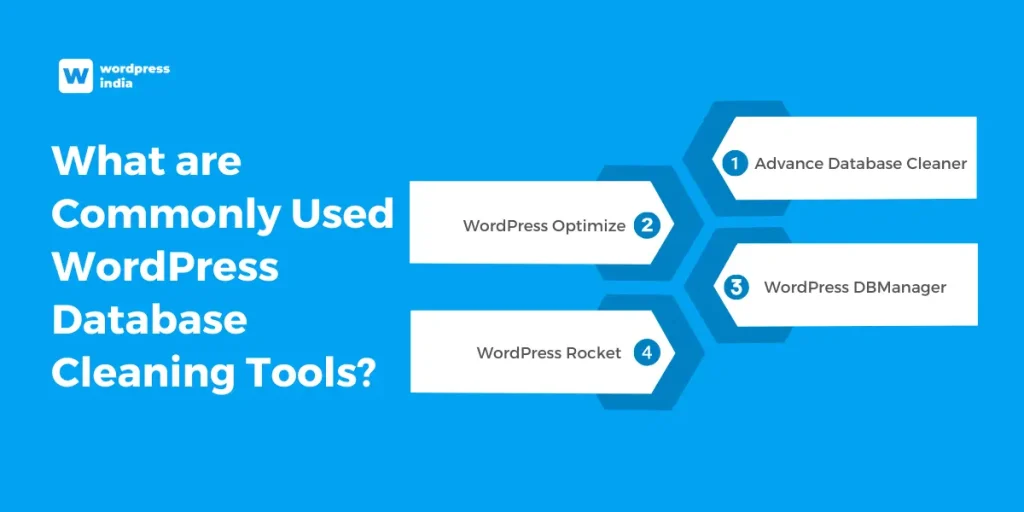
-
WP-Optimize: All-in-One Performance Optimizer
This tool is beneficial for users looking for a comprehensive performance plugin with database optimization and caching.
-
Advance Database Cleaner: Deep Cleaning for Power Users
This is optimal for developers or experienced users who want more control over database optimization.
-
WP-Sweep: Simple, Safe, and Native
This tool is suitable for beginners looking for safe and native WordPress functions for cleanup.
-
WP-DBManager: Manual Control for Developers
This tool is beneficial for advanced users and developers who are comfortable managing databases manually.
-
WP Rocket: A Premium Caching with Optimization Plugin:
This tool is beneficial for users looking for an all-in-one premium performance suite that includes database cleaning.
What is the Importance of WordPress Database Backups?
While walking through steps for database optimization in WordPress, we talked about WordPress Database backup. But why is there a need for WordPress Database Backups. The answer to this question can be explained through following aspects:
Regular WordPress database backups are your safety net. Now, in case something goes wrong, whether a failed update, a hack, or a misfired optimization, this backup can help you to restore site with minimal loss. Here’s how to stay safe:
- Always back up the database before running optimization queries, installing new plugins, or updating WordPress.
- Plugins like UpdraftPlus or VaultPress can automate backups to offsite storage. Many hosts also offer one-click backups.
- For active sites, daily backups are wise. At minimum, back up weekly or monthly depending on how often your content or orders change.
What are Some Common WordPress Database Connection Errors and Fixes?
Undoubtedly! We have gone to different aspects associated with unoptimized WordPress Database. However, there are chances that the issue isn’t slowness but an actual database error causing your site to lack. This can be identified with the following error message:
Error establishing a database connection
This error highlights that WordPress developers is not able to talk to the database. So, here we have some usual cause along with its fixing methods:
- Wrong credentials: Check that the database name, username, password, and host in wp-config.php are correct. One wrong letter or number will prevent a connection.
- Database server down: If your host’s MySQL service is offline, the site can’t connect. Check with your hosting provider or status page.
- Corrupted tables: Activate WordPress’s built-in database repair mode to fix any broken tables.
All these steps mentioned above can help to fix most database connection issues. However, you may require it to be restored from a backup if the database is badly damaged (rarely). But usually, checking the config and running the repair tool will get your site back online.
Final Words:
No Doubts! Your WordPress database is the engine driving your site’s performance. Regular maintenance with cleaning up unused data, optimizing tables, and running backups, ensures that your site remains fast, stable, and ready to handle growth. Therefore, by investing time into WordPress database optimization, you’ll not only fix immediate performance issues but also set your site up for long-term success. Also, if you need professional assistance, consider working with a WordPress Development Service to ensure your website stays optimized and runs smoothly.


